How to improve OCR accuracy: what actually helped in our tests
We damaged an invoice in 6 ways and measured Tesseract before and after each fix. Resolution and deskew mattered most; binarisation did not. Code and checklist.
Updated
TL;DR
- Shrinking an invoice to 1/3 size dropped Tesseract from 100% to 6.9% of words; upscaling recovered 91.4%.
- Deskewing a 4-degree tilt took word accuracy from 96.6% back to 100%.
- Otsu binarisation did not help: Tesseract already binarises internally.
- On the tiny image, seven API models read 89.7% to 100% of words without any pre-processing.
To improve OCR accuracy, fix the input first and the model second. In our tests on November 15, 2026, the two changes that mattered most were resolution (shrinking an invoice to a third of its size took Tesseract from 100% of words correct to 6.9%; upscaling it back recovered 91.4%) and straightening rotated pages (a 4-degree tilt cost 3.4% of words; deskewing restored 100%). Steps that are often recommended, such as binarisation, made no difference or made things slightly worse. When pre-processing is not enough, switching to a modern OCR model is the biggest single gain: on the same tiny image, seven API models read 89.7% to 100% of the words.
Below: how to measure OCR accuracy, the experiment with code you can run, and a checklist in order of impact.
How to measure OCR accuracy
You cannot improve what you do not measure, and "it looks fine" is not a measurement. Three common metrics:
- Character error rate (CER): the number of character edits (insertions, deletions, substitutions) needed to turn the OCR output into the correct text, divided by the length of the correct text. Lower is better. Standard in research.
- Word error rate (WER): the same idea, counted in words. One wrong letter makes the whole word wrong, so WER is higher than CER.
- Field accuracy: for forms and invoices, the share of fields (total, date, invoice number) that are exactly right. This is usually the number your business cares about.
All of them need ground truth: the correct text, typed or checked by a person. Make a small set of 20 to 50 of your real pages once and reuse it for every change.
In this post we use word accuracy: the share of words in the ground truth that appear, spelled exactly, in the OCR output, ignoring order. We chose it because reading order changes (a block read before another) made edit-distance scores worse by up to about 30 points in our first runs even when every character was right. That is a real problem for some uses, but it is a different problem from reading characters wrong.
from collections import Counter

def word_accuracy(truth: str, text: str) -> float:
    """Share of the words in `truth` that appear, spelled exactly, in `text`.
    Order is ignored, so a change in reading order does not count as an error."""
    want, got = Counter(truth.split()), Counter(text.split())
    return sum((want & got).values()) / sum(want.values())
The experiment
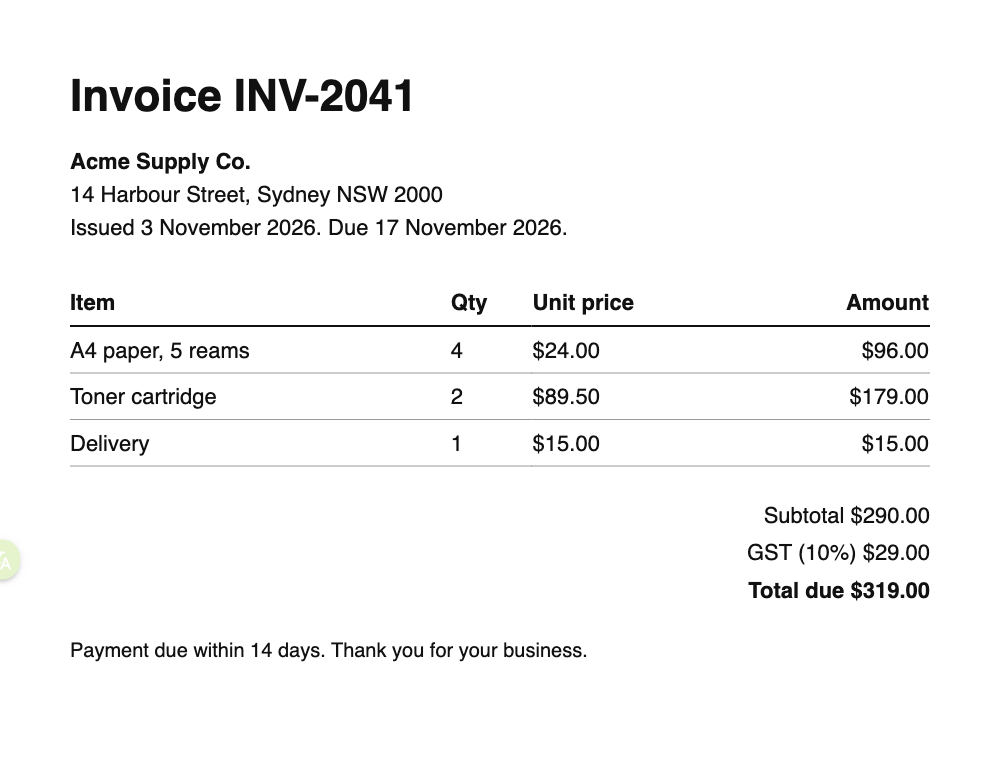
We took our sample invoice (1000 x 760 pixels, clean, printed), damaged it in common ways, ran Tesseract 5.5.4 through pytesseract, then applied a fix and ran it again. Save the function above as cer.py and the correct text of the invoice as gt.txt:
import cv2
import numpy as np
import pytesseract
from PIL import Image, ImageFilter
from cer import word_accuracy

truth = open("gt.txt").read()
clean = Image.open("invoice.png").convert("L")

def score(im, cfg=""):
    return word_accuracy(truth, pytesseract.image_to_string(im, config=cfg))

# Damage
def shrink(im, f):  return im.resize((im.width // f, im.height // f))
def blur(im):       return im.filter(ImageFilter.GaussianBlur(1.5))
def rotate(im, d):  return im.rotate(d, expand=True, fillcolor=255, resample=Image.BICUBIC)
def fade(im):       return im.point(lambda p: 170 + p * 0.25)            # grey text on grey paper

# Repair
def upscale(im, f): return im.resize((im.width * f, im.height * f), Image.LANCZOS)
def otsu(im):
    _, bw = cv2.threshold(np.array(im), 0, 255, cv2.THRESH_BINARY + cv2.THRESH_OTSU)
    return Image.fromarray(bw)
def deskew(im):
    """Estimate the text angle from the dark pixels and rotate it back."""
    a = np.array(im)
    pts = np.column_stack(np.where(a < 128))[:, ::-1].astype(np.float32)
    (_, _), (w, h), angle = cv2.minAreaRect(pts)
    if w < h:
        angle -= 90
    return im.rotate(angle, expand=True, fillcolor=255, resample=Image.BICUBIC)

rows = [
    ("clean", clean, None),
    ("1/2 resolution", shrink(clean, 2), lambda im: upscale(im, 2)),
    ("1/3 resolution", shrink(clean, 3), lambda im: upscale(im, 3)),
    ("blurred", blur(clean), None),
    ("faded", fade(clean), otsu),
    ("rotated 2 deg", rotate(clean, 2), deskew),
    ("rotated 4 deg", rotate(clean, 4), deskew),
]
for name, im, fix in rows:
    after = f"{score(fix(im)):.1%}" if fix else ""
    print(f"{name:<16} {score(im):>6.1%}  {after}")
print(f"{'clean --psm 11':<16} {score(clean, '--psm 11'):>6.1%}")
Install with pip install pytesseract pillow opencv-python-headless numpy. Output:
clean            100.0%
1/2 resolution    84.5%  100.0%
1/3 resolution     6.9%  91.4%
blurred           96.6%
faded            100.0%  98.3%
rotated 2 deg    100.0%  100.0%
rotated 4 deg     96.6%  100.0%
clean --psm 11    96.6%
The first column is word accuracy on the damaged image, the second after the fix.
What the numbers say
1. Resolution matters most
At half size, Tesseract lost 15.5% of the words; at a third (333 x 253 pixels, letters a few pixels tall) it read almost nothing. Upscaling with Lanczos brought half size back to 100% and a third back to 91.4%. Upscaling cannot invent detail that is gone, but it gets the letters into the size range the engine was built for.
This matches Tesseract's own guidance that it "works best on images which have a DPI of at least 300 dpi". The real fix is upstream: scan at 300 dpi, and when you render PDFs to images, ask for 300 dpi (page.get_pixmap(dpi=300) in PyMuPDF).
2. Straighten rotated pages
A 4-degree tilt cost 2 of 58 words; the deskew function above fixed it completely. A 2-degree tilt did not change the words at all, but in our earlier run it changed the reading order, putting the payment note before the totals. Tesseract's documentation warns that line segmentation "reduces significantly if a page is too skewed". Deskew everything that comes from a phone or a feeder scanner.
A detail we hit: rotating with Pillow's default nearest-neighbour resampling, then rotating back, damaged the letters enough to drop accuracy. Use resample=Image.BICUBIC for both.
3. Binarisation did not help here
Our "faded" image (grey text on grey paper) was read perfectly as it was. Otsu thresholding made it slightly worse (98.3%). Tesseract already binarises internally with Otsu's method, according to its documentation, so doing it again yourself adds little on evenly lit pages. It can still help on pages with uneven shadows, where a single global threshold fails; try adaptive thresholding there, and measure.
4. Blur hurt less than expected
A 1.5-pixel Gaussian blur cost 3.4% of words. Sharpening filters exist, but on a blurred scan the cheapest fix is usually a rescan.
5. Page segmentation mode is a setting, not a fix
--psm 11 (sparse text) lost 3.4% of words on our clean invoice compared with the default. Change --psm when the default clearly fails on a specific layout, for example --psm 7 for an image that is a single line. Tesseract's docs list all modes.
When pre-processing is not enough: change the model
Pre-processing helps a classic engine. A modern model often does not need it. We sent the 333 x 253 pixel invoice, the one Tesseract read 6.9% of, to eight models through the OCRRouter API:
| Model | Word accuracy on the tiny invoice |
|---|---|
| mistral/mistral-ocr | 100% |
| paddle/paddleocr-vl | 100% |
| jina/jina-ocr | 100% |
| google/document-ai | 100% |
| aws/textract | 100% |
| azure/document-intelligence | 98.3% |
| zai/glm-ocr | 89.7% |
| tesseract/tesseract | 6.9% |
The same pattern held for handwriting, where Tesseract read 6.4% of a handwritten note and the best models read 97% to 99% (details). If your documents are small, photographed, handwritten or in several languages, the model choice outweighs every pre-processing trick above.
OCR accuracy checklist, in order of impact
- Measure first. Build a ground-truth set of 20 to 50 real pages and a score that matches your goal.
- Get resolution right. 300 dpi for scans and PDF renders. Upscale small images before classic OCR.
- Straighten pages. Deskew anything photographed or fed through a scanner.
- Crop to the content. Remove large dark borders and other pages in the frame; Tesseract's docs say both large and missing borders cause problems.
- Pick the right model for the document type. Classic engines for clean print; vision-language OCR for handwriting, low-quality images, tables and mixed layouts. See the best OCR models by benchmark.
- Tell the engine what to expect. Set the language. For fields that are only digits, Tesseract's
tessedit_char_whitelistlimits the characters it can output. - Validate the output. Check totals add up, dates parse, IDs match a pattern. The invoice guide has code.
- Route failures to a second model or a person instead of accepting a low-confidence result.
Test your own files
Upload a page to the playground and switch between models to see the difference on your documents, or try the free image to text tool. For Python code with Tesseract, EasyOCR and PaddleOCR, see Python OCR.